> ## Documentation Index
> Fetch the complete documentation index at: https://docs-staging-feat-docs-5613-b2b-connect.mintlify.site/llms.txt
> Use this file to discover all available pages before exploring further.

> Learn how to configure an update policy form using Forms for Actions for users to review and accept new terms of service or consent updates.

# Use Cases: Configure an update policy form using Forms

<Card title="Before you start">
  1. Create a [Machine-to-Machine Application](/docs/get-started/auth0-overview/create-applications/machine-to-machine-apps) with the following scopes enabled:

  * `read:users`
  * `update:users`
  * `create:users`
  * `read:users_app_metadata`
  * `update:users_app_metadata`
  * `create:users_app_metadata`

  2. Add a [Vault connection](/docs/customize/forms/vault) using the M2M application credentials.
</Card>

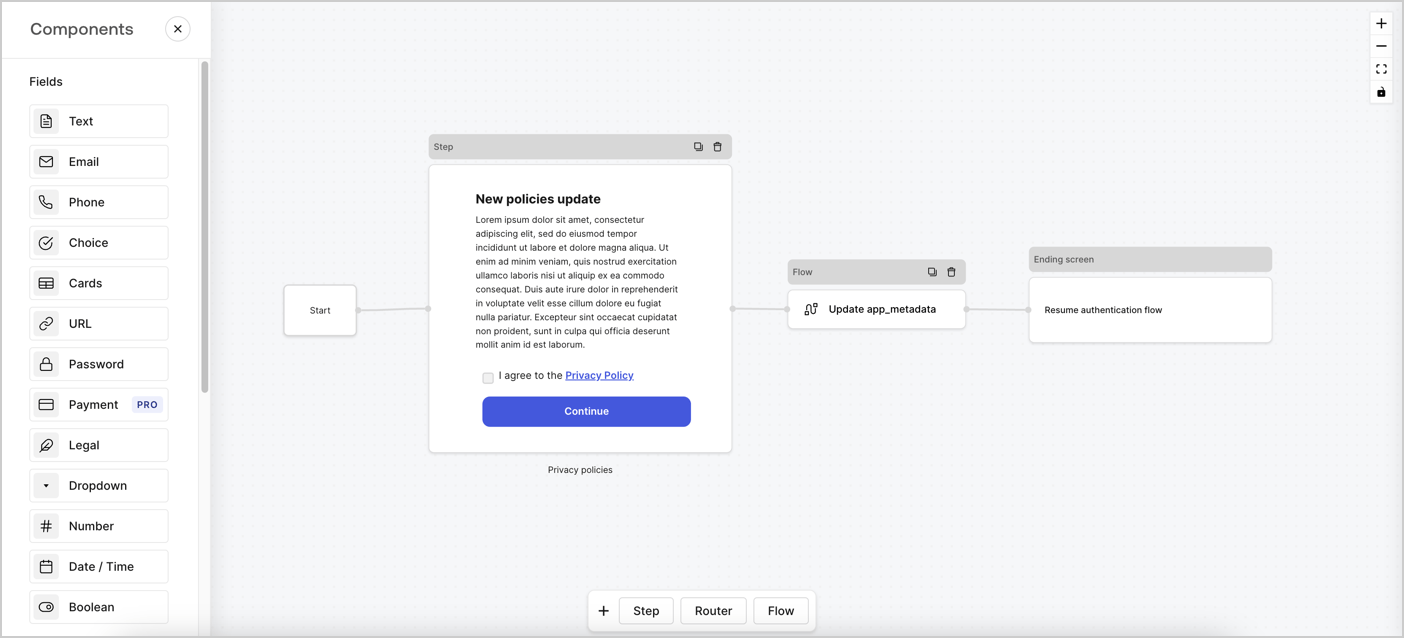
Forms for Actions allows you to create custom privacy policies flows and store the consent under the `app_metadata` object.
<Frame>
  <img src="https://mintcdn.com/docs-staging-feat-docs-5613-b2b-connect/Fa54hcUhIRA45C-H/docs/images/cdy7uua7fh8z/6i68dMvHDTijfRmSgN1x8Q/ad900e7d4c0fb34645921435472b8684/privavy-policy-form.png?fit=max&auto=format&n=Fa54hcUhIRA45C-H&q=85&s=52dcdf406f258e679bbb4e2c63a8b703" alt="Dashboard > Actions > Forms > Privacy policy use case" data-og-width="1404" width="1404" data-og-height="638" height="638" data-path="docs/images/cdy7uua7fh8z/6i68dMvHDTijfRmSgN1x8Q/ad900e7d4c0fb34645921435472b8684/privavy-policy-form.png" data-optimize="true" data-opv="3" srcset="https://mintcdn.com/docs-staging-feat-docs-5613-b2b-connect/Fa54hcUhIRA45C-H/docs/images/cdy7uua7fh8z/6i68dMvHDTijfRmSgN1x8Q/ad900e7d4c0fb34645921435472b8684/privavy-policy-form.png?w=280&fit=max&auto=format&n=Fa54hcUhIRA45C-H&q=85&s=dbe1b81e2807e1a69eb1c20f606e2bf9 280w, https://mintcdn.com/docs-staging-feat-docs-5613-b2b-connect/Fa54hcUhIRA45C-H/docs/images/cdy7uua7fh8z/6i68dMvHDTijfRmSgN1x8Q/ad900e7d4c0fb34645921435472b8684/privavy-policy-form.png?w=560&fit=max&auto=format&n=Fa54hcUhIRA45C-H&q=85&s=d4256811cf4d7f077bd1e05f4037de65 560w, https://mintcdn.com/docs-staging-feat-docs-5613-b2b-connect/Fa54hcUhIRA45C-H/docs/images/cdy7uua7fh8z/6i68dMvHDTijfRmSgN1x8Q/ad900e7d4c0fb34645921435472b8684/privavy-policy-form.png?w=840&fit=max&auto=format&n=Fa54hcUhIRA45C-H&q=85&s=cbe104bb9a64f415d0b9cc85f8a6bc80 840w, https://mintcdn.com/docs-staging-feat-docs-5613-b2b-connect/Fa54hcUhIRA45C-H/docs/images/cdy7uua7fh8z/6i68dMvHDTijfRmSgN1x8Q/ad900e7d4c0fb34645921435472b8684/privavy-policy-form.png?w=1100&fit=max&auto=format&n=Fa54hcUhIRA45C-H&q=85&s=aa5166535df98843a17e3d079e4feb70 1100w, https://mintcdn.com/docs-staging-feat-docs-5613-b2b-connect/Fa54hcUhIRA45C-H/docs/images/cdy7uua7fh8z/6i68dMvHDTijfRmSgN1x8Q/ad900e7d4c0fb34645921435472b8684/privavy-policy-form.png?w=1650&fit=max&auto=format&n=Fa54hcUhIRA45C-H&q=85&s=2e10b69611c65cbb7c539d2c48bff2c2 1650w, https://mintcdn.com/docs-staging-feat-docs-5613-b2b-connect/Fa54hcUhIRA45C-H/docs/images/cdy7uua7fh8z/6i68dMvHDTijfRmSgN1x8Q/ad900e7d4c0fb34645921435472b8684/privavy-policy-form.png?w=2500&fit=max&auto=format&n=Fa54hcUhIRA45C-H&q=85&s=6519572d977b8e5dd0722eb0f7557fea 2500w" />
</Frame>

The sections below outline how you can create an Update Policy form using nodes and flows, along with steps for adding your form to a [Post Login](/docs/customize/actions/explore-triggers/signup-and-login-triggers/login-trigger) Action.

## Create a form from scratch

Follow these steps to create a form to gather information:

1. Open the Form editor by selecting **Auth0 Dashboard > Actions > Forms.**
2. Select **Create Form** > **Start from scratch**.

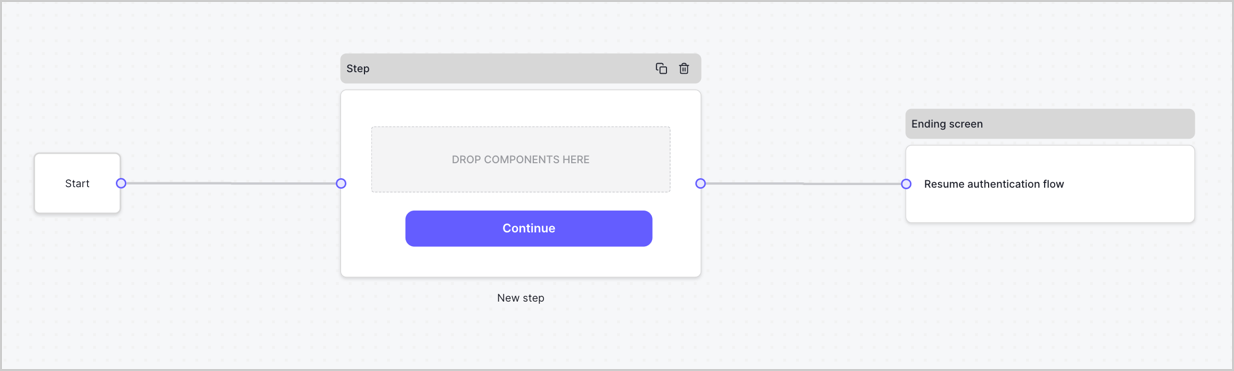
By default, a new form contains a Start node, a Step node, and an Ending screen node.
<Frame>
  <img src="https://mintcdn.com/docs-staging-feat-docs-5613-b2b-connect/YKpflbbL6lua-2u1/docs/images/cdy7uua7fh8z/2TZ9jSjgEcARFpULI6hz4R/a4319a1bd482f2ee5cc23100fdb2f42c/New-form-Forms-for-action-use-case.png?fit=max&auto=format&n=YKpflbbL6lua-2u1&q=85&s=6cf2834b1ce20861ab82fcd4a764fc95" alt="Dashboard > Forms > Use Cases > Form" data-og-width="1234" width="1234" data-og-height="371" height="371" data-path="docs/images/cdy7uua7fh8z/2TZ9jSjgEcARFpULI6hz4R/a4319a1bd482f2ee5cc23100fdb2f42c/New-form-Forms-for-action-use-case.png" data-optimize="true" data-opv="3" srcset="https://mintcdn.com/docs-staging-feat-docs-5613-b2b-connect/YKpflbbL6lua-2u1/docs/images/cdy7uua7fh8z/2TZ9jSjgEcARFpULI6hz4R/a4319a1bd482f2ee5cc23100fdb2f42c/New-form-Forms-for-action-use-case.png?w=280&fit=max&auto=format&n=YKpflbbL6lua-2u1&q=85&s=b47d02f3cc768720d7176c2a38ba0a5e 280w, https://mintcdn.com/docs-staging-feat-docs-5613-b2b-connect/YKpflbbL6lua-2u1/docs/images/cdy7uua7fh8z/2TZ9jSjgEcARFpULI6hz4R/a4319a1bd482f2ee5cc23100fdb2f42c/New-form-Forms-for-action-use-case.png?w=560&fit=max&auto=format&n=YKpflbbL6lua-2u1&q=85&s=f454f7e928a7bb7b30c0afb9afdbe743 560w, https://mintcdn.com/docs-staging-feat-docs-5613-b2b-connect/YKpflbbL6lua-2u1/docs/images/cdy7uua7fh8z/2TZ9jSjgEcARFpULI6hz4R/a4319a1bd482f2ee5cc23100fdb2f42c/New-form-Forms-for-action-use-case.png?w=840&fit=max&auto=format&n=YKpflbbL6lua-2u1&q=85&s=0f48711542b71296319dc45ea7d97728 840w, https://mintcdn.com/docs-staging-feat-docs-5613-b2b-connect/YKpflbbL6lua-2u1/docs/images/cdy7uua7fh8z/2TZ9jSjgEcARFpULI6hz4R/a4319a1bd482f2ee5cc23100fdb2f42c/New-form-Forms-for-action-use-case.png?w=1100&fit=max&auto=format&n=YKpflbbL6lua-2u1&q=85&s=1e9d5baf9539f4747a5575e045ff1c72 1100w, https://mintcdn.com/docs-staging-feat-docs-5613-b2b-connect/YKpflbbL6lua-2u1/docs/images/cdy7uua7fh8z/2TZ9jSjgEcARFpULI6hz4R/a4319a1bd482f2ee5cc23100fdb2f42c/New-form-Forms-for-action-use-case.png?w=1650&fit=max&auto=format&n=YKpflbbL6lua-2u1&q=85&s=2ae431efc174a842514359a08559f0fb 1650w, https://mintcdn.com/docs-staging-feat-docs-5613-b2b-connect/YKpflbbL6lua-2u1/docs/images/cdy7uua7fh8z/2TZ9jSjgEcARFpULI6hz4R/a4319a1bd482f2ee5cc23100fdb2f42c/New-form-Forms-for-action-use-case.png?w=2500&fit=max&auto=format&n=YKpflbbL6lua-2u1&q=85&s=553d8fb77e3c1dbcfcf9ebf3a3f15bd4 2500w" />
</Frame>

### Configure the Step node

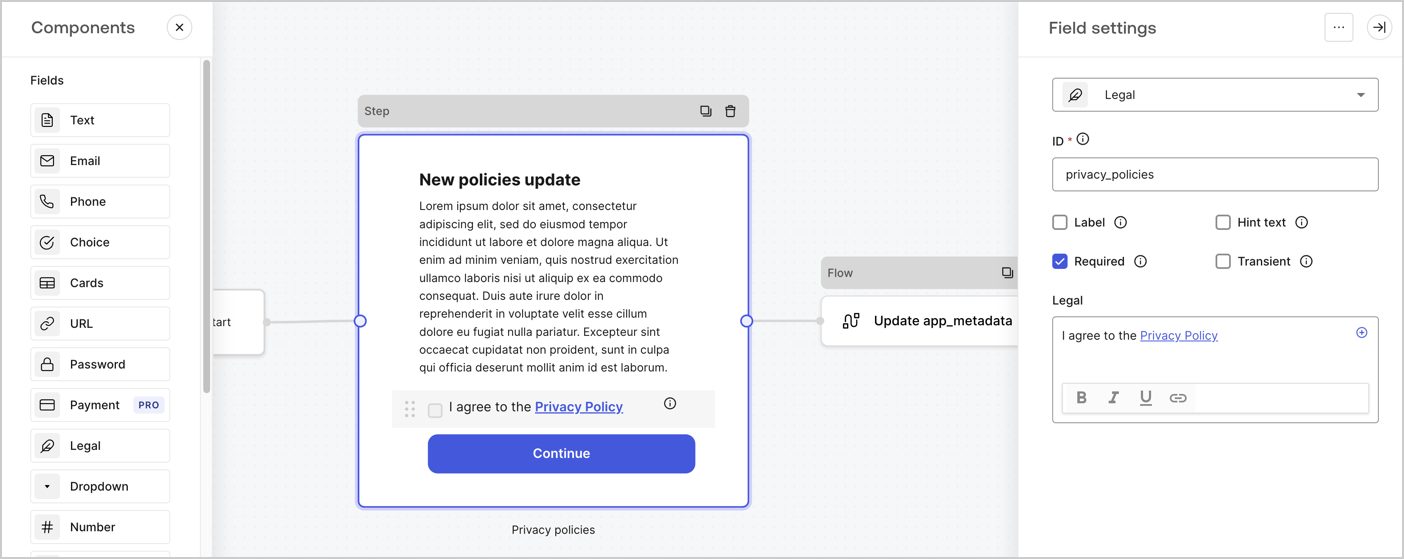
The Step node is the graphical interface visible to users. Add [Fields](/docs/customize/forms/nodes-and-components) to the Step node to collect the new agreement acceptance value by following these steps:

1. Drag a **Rich text** field from the **Components menu** into the **Step** node.

   * **Rich text**: Enter a description of your privacy policies updates.
   * Select **Save**.
2. Drag a **Legal** field into the **Step** node.

   * **ID**: Enter `privacy_policies`.
   * **Required**: Enable the checkbox.
   * **Legal**: Enter `I agree to the Privacy Policy`.
   * Select **Save**.
3. Select **Publish** to save.
<Frame>
  <img src="https://mintcdn.com/docs-staging-feat-docs-5613-b2b-connect/DzGBU-5orbYH62dp/docs/images/cdy7uua7fh8z/59zFFjQjAnjogkc2QGIqqJ/0ad66b1b636544122aa4e65968b76c2c/privacy-policy-step-node.png?fit=max&auto=format&n=DzGBU-5orbYH62dp&q=85&s=78ca679ebc402343273c4bc604e83155" alt="Dashboard > Actions > Forms > Use case privacy policy step node" data-og-width="1404" width="1404" data-og-height="559" height="559" data-path="docs/images/cdy7uua7fh8z/59zFFjQjAnjogkc2QGIqqJ/0ad66b1b636544122aa4e65968b76c2c/privacy-policy-step-node.png" data-optimize="true" data-opv="3" srcset="https://mintcdn.com/docs-staging-feat-docs-5613-b2b-connect/DzGBU-5orbYH62dp/docs/images/cdy7uua7fh8z/59zFFjQjAnjogkc2QGIqqJ/0ad66b1b636544122aa4e65968b76c2c/privacy-policy-step-node.png?w=280&fit=max&auto=format&n=DzGBU-5orbYH62dp&q=85&s=7f6eded85b8f0f6dd5007363369e72f8 280w, https://mintcdn.com/docs-staging-feat-docs-5613-b2b-connect/DzGBU-5orbYH62dp/docs/images/cdy7uua7fh8z/59zFFjQjAnjogkc2QGIqqJ/0ad66b1b636544122aa4e65968b76c2c/privacy-policy-step-node.png?w=560&fit=max&auto=format&n=DzGBU-5orbYH62dp&q=85&s=42d143d237bffd1cbfb453130fc01a98 560w, https://mintcdn.com/docs-staging-feat-docs-5613-b2b-connect/DzGBU-5orbYH62dp/docs/images/cdy7uua7fh8z/59zFFjQjAnjogkc2QGIqqJ/0ad66b1b636544122aa4e65968b76c2c/privacy-policy-step-node.png?w=840&fit=max&auto=format&n=DzGBU-5orbYH62dp&q=85&s=a07b3e0b492b2bcec5d5eb4766ecb916 840w, https://mintcdn.com/docs-staging-feat-docs-5613-b2b-connect/DzGBU-5orbYH62dp/docs/images/cdy7uua7fh8z/59zFFjQjAnjogkc2QGIqqJ/0ad66b1b636544122aa4e65968b76c2c/privacy-policy-step-node.png?w=1100&fit=max&auto=format&n=DzGBU-5orbYH62dp&q=85&s=2f07367b39c9d7e72d89b6401dcc01a8 1100w, https://mintcdn.com/docs-staging-feat-docs-5613-b2b-connect/DzGBU-5orbYH62dp/docs/images/cdy7uua7fh8z/59zFFjQjAnjogkc2QGIqqJ/0ad66b1b636544122aa4e65968b76c2c/privacy-policy-step-node.png?w=1650&fit=max&auto=format&n=DzGBU-5orbYH62dp&q=85&s=b404760ee50e5dd2f332899e30d006a3 1650w, https://mintcdn.com/docs-staging-feat-docs-5613-b2b-connect/DzGBU-5orbYH62dp/docs/images/cdy7uua7fh8z/59zFFjQjAnjogkc2QGIqqJ/0ad66b1b636544122aa4e65968b76c2c/privacy-policy-step-node.png?w=2500&fit=max&auto=format&n=DzGBU-5orbYH62dp&q=85&s=eff1366591d9eb7757a779cc9e459d77 2500w" />
</Frame>

### Configure the Flow node

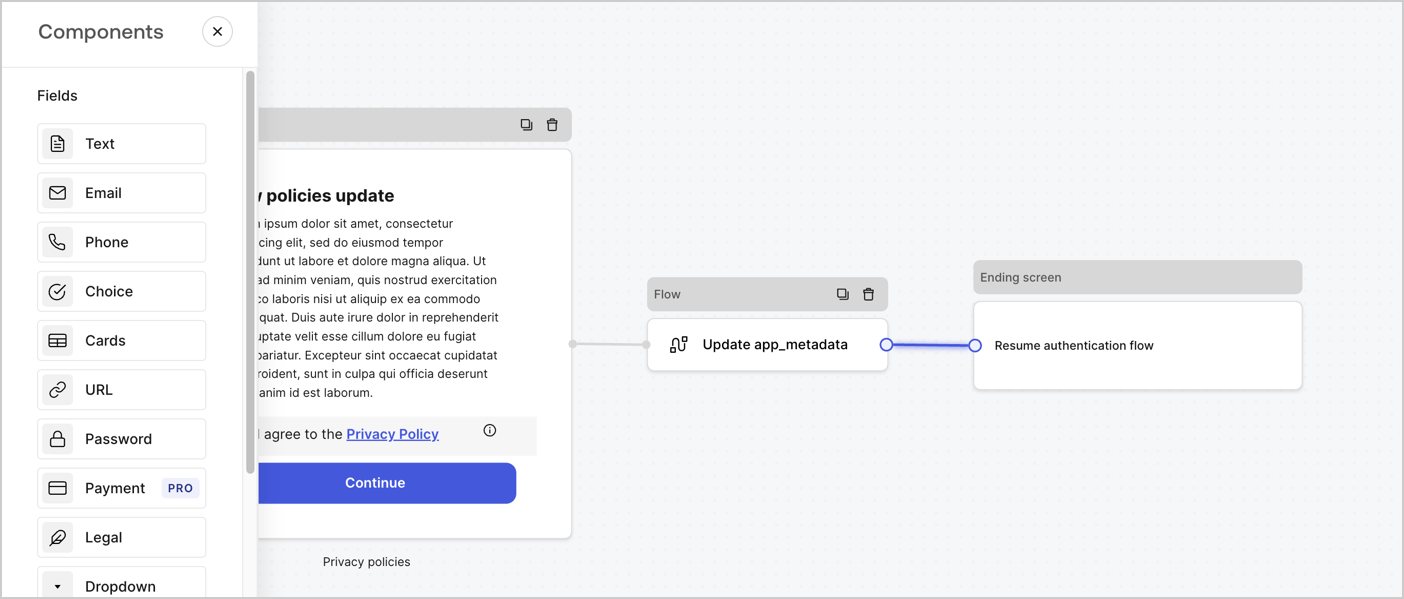
Add a **Flow** node after the **Step** node to update the `app_metadata` and resume the authentication flow by following these steps:

1. Select **Flow** from the bottom of the Form editor.
2. Remove the existing link between the **Step** and **Ending Screen** nodes.
3. Select the new **Flow** > **Click to add a flow** > **Create a new flow.**

   * Enter `Update app_metadata` in the **Name** field.
   * Select **Create**.
   * Select **Save**.
4. Link the **Flow** node to the **Step** and **Ending Screen** nodes as pictured below.
5. Select **Publish** to save.
<Frame>
  <img src="https://mintcdn.com/docs-staging-feat-docs-5613-b2b-connect/Fa54hcUhIRA45C-H/docs/images/cdy7uua7fh8z/6YIkzm7SrpM9LW76AXuRzh/353c518fe82bbaa440836da1d83596d6/link-policies.png?fit=max&auto=format&n=Fa54hcUhIRA45C-H&q=85&s=4256a32afd03ef917d1ed3ca7bdb6e08" alt="Dashboard > Actions > Forms > Form" data-og-width="1404" width="1404" data-og-height="599" height="599" data-path="docs/images/cdy7uua7fh8z/6YIkzm7SrpM9LW76AXuRzh/353c518fe82bbaa440836da1d83596d6/link-policies.png" data-optimize="true" data-opv="3" srcset="https://mintcdn.com/docs-staging-feat-docs-5613-b2b-connect/Fa54hcUhIRA45C-H/docs/images/cdy7uua7fh8z/6YIkzm7SrpM9LW76AXuRzh/353c518fe82bbaa440836da1d83596d6/link-policies.png?w=280&fit=max&auto=format&n=Fa54hcUhIRA45C-H&q=85&s=0ddca34754a4b4bfd12afc50b2b5b735 280w, https://mintcdn.com/docs-staging-feat-docs-5613-b2b-connect/Fa54hcUhIRA45C-H/docs/images/cdy7uua7fh8z/6YIkzm7SrpM9LW76AXuRzh/353c518fe82bbaa440836da1d83596d6/link-policies.png?w=560&fit=max&auto=format&n=Fa54hcUhIRA45C-H&q=85&s=c4ed59242368b128b54dfea88541d8ea 560w, https://mintcdn.com/docs-staging-feat-docs-5613-b2b-connect/Fa54hcUhIRA45C-H/docs/images/cdy7uua7fh8z/6YIkzm7SrpM9LW76AXuRzh/353c518fe82bbaa440836da1d83596d6/link-policies.png?w=840&fit=max&auto=format&n=Fa54hcUhIRA45C-H&q=85&s=1cb09489f17e6820a65ca76b36953ced 840w, https://mintcdn.com/docs-staging-feat-docs-5613-b2b-connect/Fa54hcUhIRA45C-H/docs/images/cdy7uua7fh8z/6YIkzm7SrpM9LW76AXuRzh/353c518fe82bbaa440836da1d83596d6/link-policies.png?w=1100&fit=max&auto=format&n=Fa54hcUhIRA45C-H&q=85&s=f6bedf4f69bcbd64fe751759a3a01c17 1100w, https://mintcdn.com/docs-staging-feat-docs-5613-b2b-connect/Fa54hcUhIRA45C-H/docs/images/cdy7uua7fh8z/6YIkzm7SrpM9LW76AXuRzh/353c518fe82bbaa440836da1d83596d6/link-policies.png?w=1650&fit=max&auto=format&n=Fa54hcUhIRA45C-H&q=85&s=fb56f2a7814353eab1f0aafe09c9e6a6 1650w, https://mintcdn.com/docs-staging-feat-docs-5613-b2b-connect/Fa54hcUhIRA45C-H/docs/images/cdy7uua7fh8z/6YIkzm7SrpM9LW76AXuRzh/353c518fe82bbaa440836da1d83596d6/link-policies.png?w=2500&fit=max&auto=format&n=Fa54hcUhIRA45C-H&q=85&s=8f4ce02e6f0b568ba0545470e4e0e54c 2500w" />
</Frame>

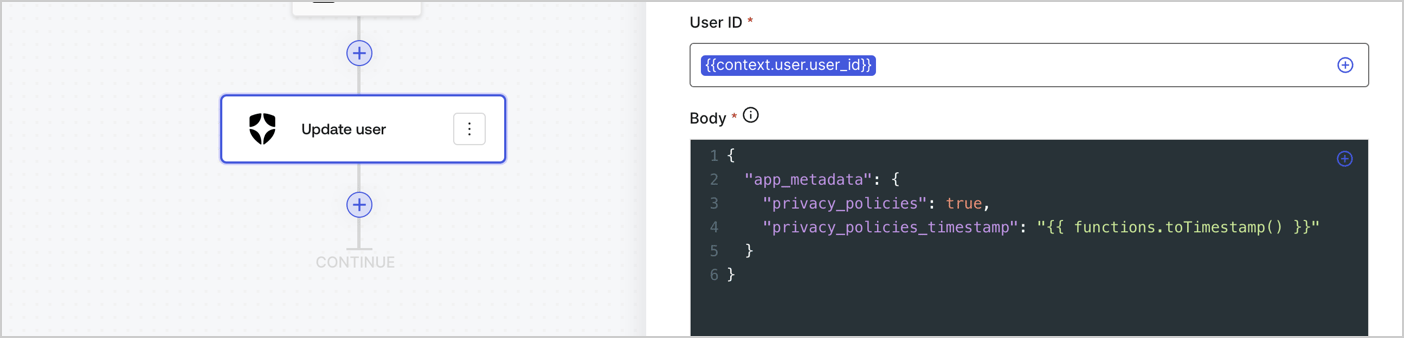
Add an Auth0 Update user action to the flow by following these steps:

1. Select the **Flow** **Update app\_metadata** > **Edit flow** to open the Flow editor in a new tab.
2. Below the StartAction, select the **+** icon to add an **Update user** action. Complete the fields below, then select **Save** to continue.

   * **Connection**: Select from the dropdown the Vault connection to your M2M application.

   * **User ID**: Enter `{{context.user.user_id}}`.

   * **Body**: Copy and paste the following code to update the app\_metadata with the privacy\_policies and privacy\_policies\_timestamp properties.

     ```text lines theme={null}
     {
       "app_metadata": {
         "privacy_policies": true,
         "privacy_policies_timestamp": "{{ functions.toTimestamp() }}"
       }
     }
     ```

   * Select **Save**.
3. Select **Publish** to save.
<Frame>
  <img src="https://mintcdn.com/docs-staging-feat-docs-5613-b2b-connect/ayHSAAU_B5J2GPUe/docs/images/cdy7uua7fh8z/CvMNIwWrOUwaFW4X3G28p/1fb70ae57a20749d9ffaaba8dc0b7e26/update-user-privacy.png?fit=max&auto=format&n=ayHSAAU_B5J2GPUe&q=85&s=029136fe3f2c9d61ebcb0a1a66f2a57c" alt="Dashboard > Actions > Forms > User case privacy policy code" data-og-width="1404" width="1404" data-og-height="338" height="338" data-path="docs/images/cdy7uua7fh8z/CvMNIwWrOUwaFW4X3G28p/1fb70ae57a20749d9ffaaba8dc0b7e26/update-user-privacy.png" data-optimize="true" data-opv="3" srcset="https://mintcdn.com/docs-staging-feat-docs-5613-b2b-connect/ayHSAAU_B5J2GPUe/docs/images/cdy7uua7fh8z/CvMNIwWrOUwaFW4X3G28p/1fb70ae57a20749d9ffaaba8dc0b7e26/update-user-privacy.png?w=280&fit=max&auto=format&n=ayHSAAU_B5J2GPUe&q=85&s=8fd1ff12e72f6a36b516572a70f46c70 280w, https://mintcdn.com/docs-staging-feat-docs-5613-b2b-connect/ayHSAAU_B5J2GPUe/docs/images/cdy7uua7fh8z/CvMNIwWrOUwaFW4X3G28p/1fb70ae57a20749d9ffaaba8dc0b7e26/update-user-privacy.png?w=560&fit=max&auto=format&n=ayHSAAU_B5J2GPUe&q=85&s=0d2d3f97514c130bb2e59a82f9561569 560w, https://mintcdn.com/docs-staging-feat-docs-5613-b2b-connect/ayHSAAU_B5J2GPUe/docs/images/cdy7uua7fh8z/CvMNIwWrOUwaFW4X3G28p/1fb70ae57a20749d9ffaaba8dc0b7e26/update-user-privacy.png?w=840&fit=max&auto=format&n=ayHSAAU_B5J2GPUe&q=85&s=2d1b7cad44947f9f284af7166379e6a1 840w, https://mintcdn.com/docs-staging-feat-docs-5613-b2b-connect/ayHSAAU_B5J2GPUe/docs/images/cdy7uua7fh8z/CvMNIwWrOUwaFW4X3G28p/1fb70ae57a20749d9ffaaba8dc0b7e26/update-user-privacy.png?w=1100&fit=max&auto=format&n=ayHSAAU_B5J2GPUe&q=85&s=fcf073fbc1394a2fc896f414fd757ebd 1100w, https://mintcdn.com/docs-staging-feat-docs-5613-b2b-connect/ayHSAAU_B5J2GPUe/docs/images/cdy7uua7fh8z/CvMNIwWrOUwaFW4X3G28p/1fb70ae57a20749d9ffaaba8dc0b7e26/update-user-privacy.png?w=1650&fit=max&auto=format&n=ayHSAAU_B5J2GPUe&q=85&s=862548643e38b305404ae0d55cab6d7e 1650w, https://mintcdn.com/docs-staging-feat-docs-5613-b2b-connect/ayHSAAU_B5J2GPUe/docs/images/cdy7uua7fh8z/CvMNIwWrOUwaFW4X3G28p/1fb70ae57a20749d9ffaaba8dc0b7e26/update-user-privacy.png?w=2500&fit=max&auto=format&n=ayHSAAU_B5J2GPUe&q=85&s=fc380b0520273ef0aec447b55e196067 2500w" />
</Frame>

<Callout icon="file-lines" color="#0EA5E9" iconType="regular">
  The flow **Update app\_metadata** adds a `privacy_policies true` value to the app`_metadata` object and also generates a timestamp with a [helper function.](/docs/customize/forms/variables)
</Callout>

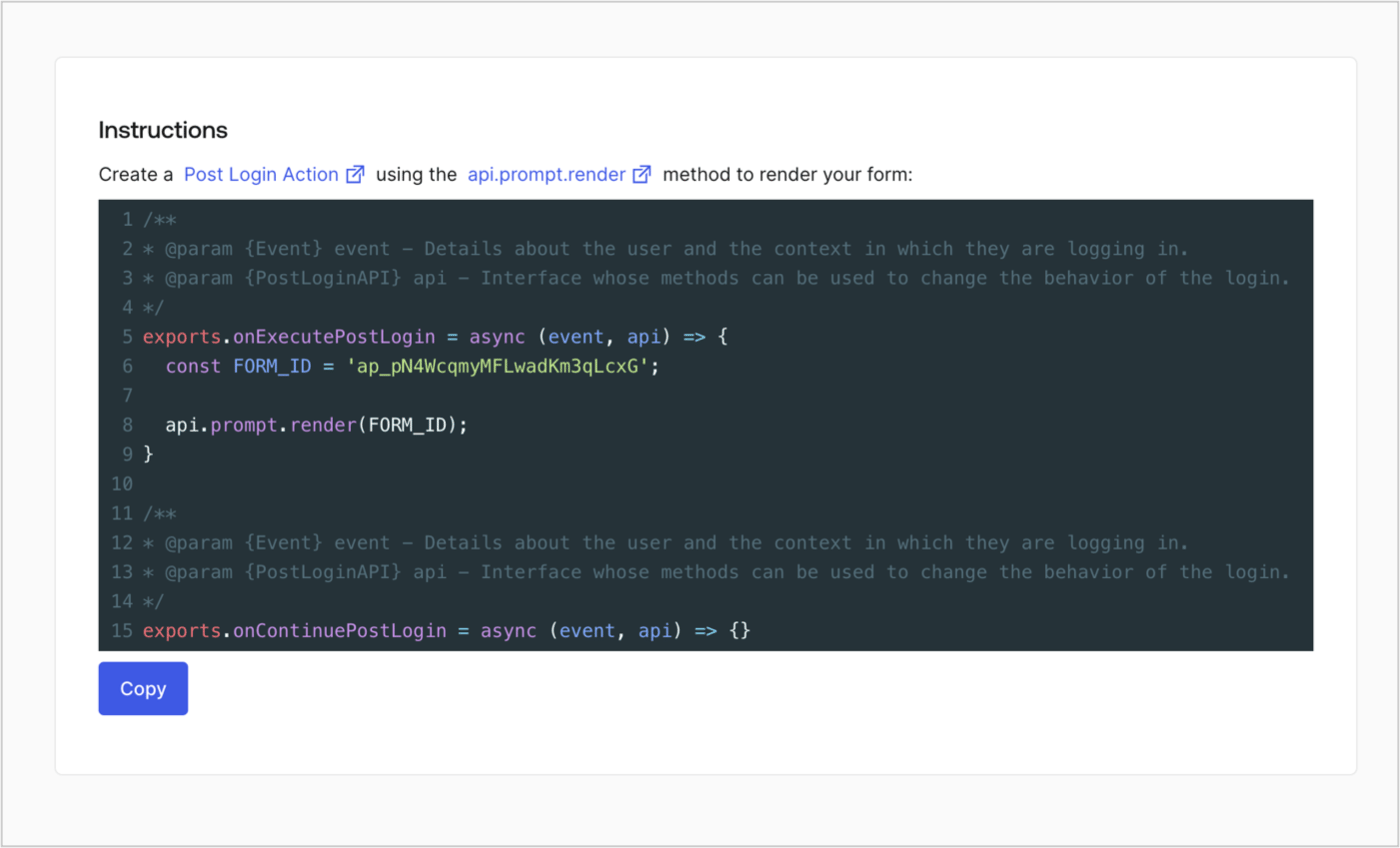
## Retrieve the form render code

Retrieve your form render code to visually render the form with a custom Post Login Action by following these steps:

* From the Form editor, select **`<> Render`**.
* Select **Copy**.
<Frame>
  <img src="https://mintcdn.com/docs-staging-feat-docs-5613-b2b-connect/Ta6psW2Fy67tM-DY/docs/images/cdy7uua7fh8z/2EIUzc539sq9lwoTKbjoJv/496a864c0fc44a782c9cadca119dbfb0/embed.png?fit=max&auto=format&n=Ta6psW2Fy67tM-DY&q=85&s=123d632a86090125b6810c6b7fc9505c" alt="Dashboard > Actions > Forms > Form > Embed" data-og-width="1400" width="1400" data-og-height="848" height="848" data-path="docs/images/cdy7uua7fh8z/2EIUzc539sq9lwoTKbjoJv/496a864c0fc44a782c9cadca119dbfb0/embed.png" data-optimize="true" data-opv="3" srcset="https://mintcdn.com/docs-staging-feat-docs-5613-b2b-connect/Ta6psW2Fy67tM-DY/docs/images/cdy7uua7fh8z/2EIUzc539sq9lwoTKbjoJv/496a864c0fc44a782c9cadca119dbfb0/embed.png?w=280&fit=max&auto=format&n=Ta6psW2Fy67tM-DY&q=85&s=8bdaa994358de62af2b187589ce43f62 280w, https://mintcdn.com/docs-staging-feat-docs-5613-b2b-connect/Ta6psW2Fy67tM-DY/docs/images/cdy7uua7fh8z/2EIUzc539sq9lwoTKbjoJv/496a864c0fc44a782c9cadca119dbfb0/embed.png?w=560&fit=max&auto=format&n=Ta6psW2Fy67tM-DY&q=85&s=0538a895a50dca5822cd6bd63ba5f51c 560w, https://mintcdn.com/docs-staging-feat-docs-5613-b2b-connect/Ta6psW2Fy67tM-DY/docs/images/cdy7uua7fh8z/2EIUzc539sq9lwoTKbjoJv/496a864c0fc44a782c9cadca119dbfb0/embed.png?w=840&fit=max&auto=format&n=Ta6psW2Fy67tM-DY&q=85&s=a9cf8463abfdffeb139fe465e93bb55b 840w, https://mintcdn.com/docs-staging-feat-docs-5613-b2b-connect/Ta6psW2Fy67tM-DY/docs/images/cdy7uua7fh8z/2EIUzc539sq9lwoTKbjoJv/496a864c0fc44a782c9cadca119dbfb0/embed.png?w=1100&fit=max&auto=format&n=Ta6psW2Fy67tM-DY&q=85&s=55d25c76da399a435d3ed02034e7ca48 1100w, https://mintcdn.com/docs-staging-feat-docs-5613-b2b-connect/Ta6psW2Fy67tM-DY/docs/images/cdy7uua7fh8z/2EIUzc539sq9lwoTKbjoJv/496a864c0fc44a782c9cadca119dbfb0/embed.png?w=1650&fit=max&auto=format&n=Ta6psW2Fy67tM-DY&q=85&s=b2e9002cefd4dd29f574965f60e05352 1650w, https://mintcdn.com/docs-staging-feat-docs-5613-b2b-connect/Ta6psW2Fy67tM-DY/docs/images/cdy7uua7fh8z/2EIUzc539sq9lwoTKbjoJv/496a864c0fc44a782c9cadca119dbfb0/embed.png?w=2500&fit=max&auto=format&n=Ta6psW2Fy67tM-DY&q=85&s=8058e0907912063775d7025a8850bd68 2500w" />
</Frame>

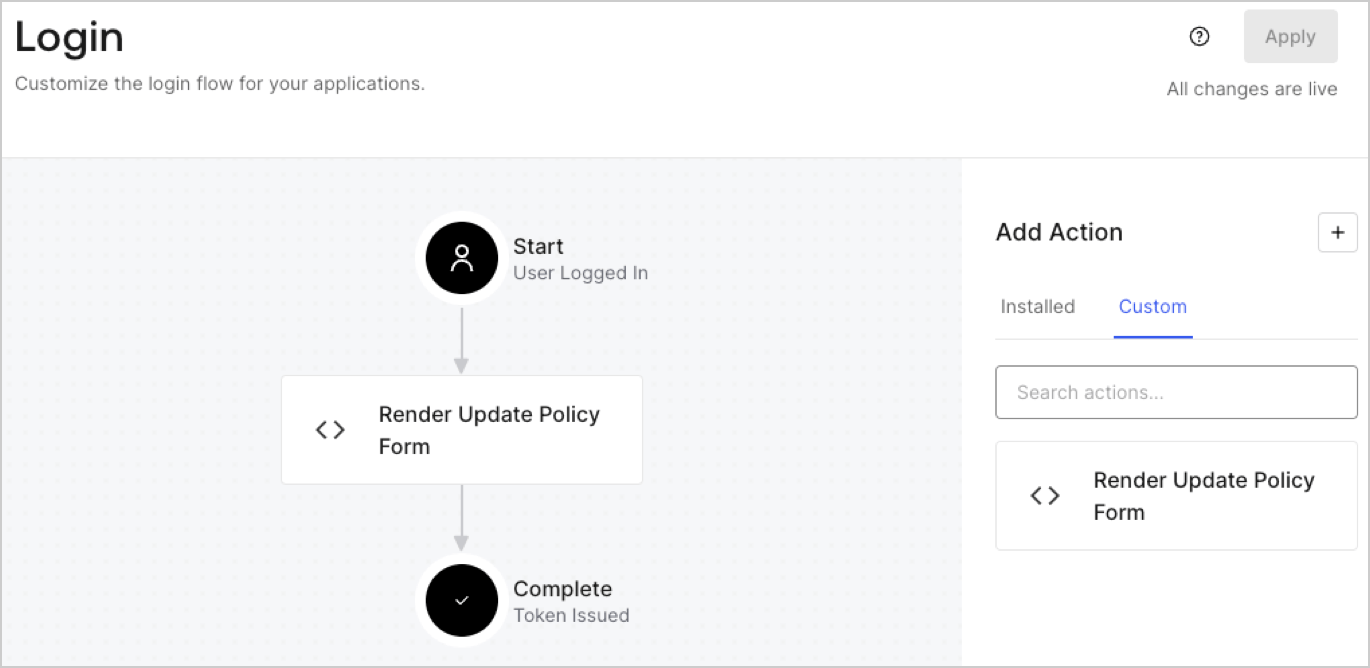
## Create a Post Login Action

Create a post-login Action to render your form by following these steps:

1. Navigate to **Auth0 Dashboard > Actions > Flows > Login.**
2. Select the **+** icon and Select **Build from scratch**:

   * **Name**: Enter `Render Update Policy Form`.
   * **Trigger**: Select `Login / Post Login`.
   * **Runtime**: Select the recommended version.
3. Select **Create**.

To configure the post-login Action:

1. Delete the existing code from the Code editor.
2. Paste the form render code into the Code editor.
3. Edit the code to define the conditional logic that will render the form.

   ```javascript lines theme={null}
   /**
   * @param {Event} event - Details about the user and the context in which they are logging in.
   * @param {PostLoginAPI} api - Interface whose methods can be used to change the behavior of the login.
   */
   exports.onExecutePostLogin = async (event, api) => {
     const FORM_ID = 'REPLACE_WITH_YOUR_FORM_ID';

     if (event.user.app_metadata.privacy_policies !== true) {
       api.prompt.render(FORM_ID);
     }
   }

   exports.onContinuePostLogin = async (event, api) => { }
   ```

   <Callout icon="file-lines" color="#0EA5E9" iconType="regular">
     The example code above will render the form when a user is missing the app metadata `privacy_policies` property.
   </Callout>
4. Select **Deploy.**
5. Drag and Drop the **Render Update Policy Form** Action to the **Login** flow.
   <Frame>
     <img src="https://mintcdn.com/docs-staging-feat-docs-5613-b2b-connect/QT0O5dVzD_qk3Mx0/docs/images/cdy7uua7fh8z/5TOwDgevZsBqd7yZynUYWU/41ca909dc3007aed4f40ff794a05efa5/postlogin.png?fit=max&auto=format&n=QT0O5dVzD_qk3Mx0&q=85&s=a7a037d1e67873dccd9b08984a96ce94" alt="Dashboard > Forms > Use Case > Render update policy form login action" data-og-width="1370" width="1370" data-og-height="668" height="668" data-path="docs/images/cdy7uua7fh8z/5TOwDgevZsBqd7yZynUYWU/41ca909dc3007aed4f40ff794a05efa5/postlogin.png" data-optimize="true" data-opv="3" srcset="https://mintcdn.com/docs-staging-feat-docs-5613-b2b-connect/QT0O5dVzD_qk3Mx0/docs/images/cdy7uua7fh8z/5TOwDgevZsBqd7yZynUYWU/41ca909dc3007aed4f40ff794a05efa5/postlogin.png?w=280&fit=max&auto=format&n=QT0O5dVzD_qk3Mx0&q=85&s=1a68511a0b2681fad46fe70161a89112 280w, https://mintcdn.com/docs-staging-feat-docs-5613-b2b-connect/QT0O5dVzD_qk3Mx0/docs/images/cdy7uua7fh8z/5TOwDgevZsBqd7yZynUYWU/41ca909dc3007aed4f40ff794a05efa5/postlogin.png?w=560&fit=max&auto=format&n=QT0O5dVzD_qk3Mx0&q=85&s=d02629c994965b9697a63a4a6e49bd25 560w, https://mintcdn.com/docs-staging-feat-docs-5613-b2b-connect/QT0O5dVzD_qk3Mx0/docs/images/cdy7uua7fh8z/5TOwDgevZsBqd7yZynUYWU/41ca909dc3007aed4f40ff794a05efa5/postlogin.png?w=840&fit=max&auto=format&n=QT0O5dVzD_qk3Mx0&q=85&s=9dbd846c4a7f7c60088140ca912d26b0 840w, https://mintcdn.com/docs-staging-feat-docs-5613-b2b-connect/QT0O5dVzD_qk3Mx0/docs/images/cdy7uua7fh8z/5TOwDgevZsBqd7yZynUYWU/41ca909dc3007aed4f40ff794a05efa5/postlogin.png?w=1100&fit=max&auto=format&n=QT0O5dVzD_qk3Mx0&q=85&s=ff4b7b98e7a98cd61e5c49cf32d31122 1100w, https://mintcdn.com/docs-staging-feat-docs-5613-b2b-connect/QT0O5dVzD_qk3Mx0/docs/images/cdy7uua7fh8z/5TOwDgevZsBqd7yZynUYWU/41ca909dc3007aed4f40ff794a05efa5/postlogin.png?w=1650&fit=max&auto=format&n=QT0O5dVzD_qk3Mx0&q=85&s=dff94a7260f6073fe83047b973695518 1650w, https://mintcdn.com/docs-staging-feat-docs-5613-b2b-connect/QT0O5dVzD_qk3Mx0/docs/images/cdy7uua7fh8z/5TOwDgevZsBqd7yZynUYWU/41ca909dc3007aed4f40ff794a05efa5/postlogin.png?w=2500&fit=max&auto=format&n=QT0O5dVzD_qk3Mx0&q=85&s=fb9536297dec22ad1523cffb79ccd761 2500w" />
   </Frame>
6. Select **Apply.**

### Test implementation

Test the implementation by following these steps:

1. Log in with an existing user whose app`_metadata` attribute `privacy_policies` does not have a value.
2. The post-login Action in the Login flow will render the form and prompt for acceptance.
3. Select **Auth0 Dashboard > User Management > Users,** locate the user and verify that the `app_metadata` attribute `privacy_policies` contains a `true` value and a timestamp.
